How to set up the firewall
The firewall sits in our network in front of your server, so blocked traffic never reaches it. It is free and you can switch it off at any time.
- Where
- Servers → your server → Network → Firewall
- Rules
- up to 10 incoming rules
- Applies
- in about 30 seconds
Open the firewall
Open the server and press Set up (or Edit rules) on the Firewall tile under Network (1).
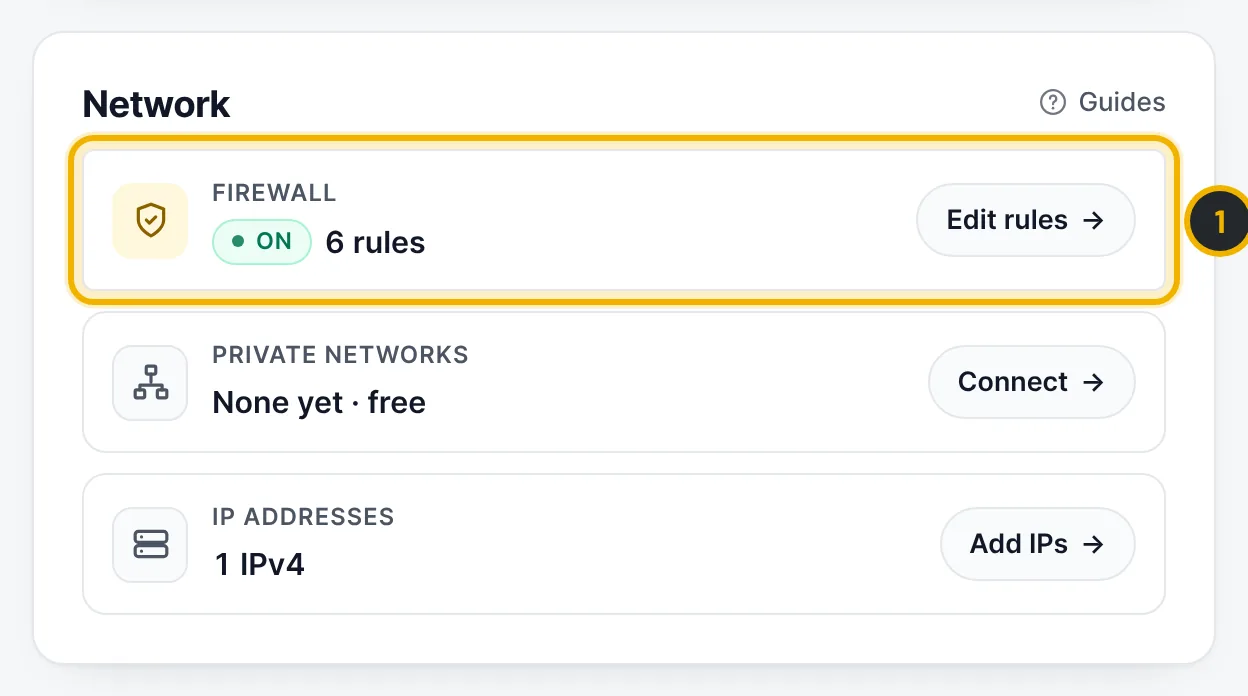
The numbers in the picture match the numbers in the text. Start from a template
The quickest start is a template: choose SSH only, Web server, Windows server, Mail server or Hosting panel (1) and press Load template (2). This replaces the rules in the table; nothing is saved until you press Save.
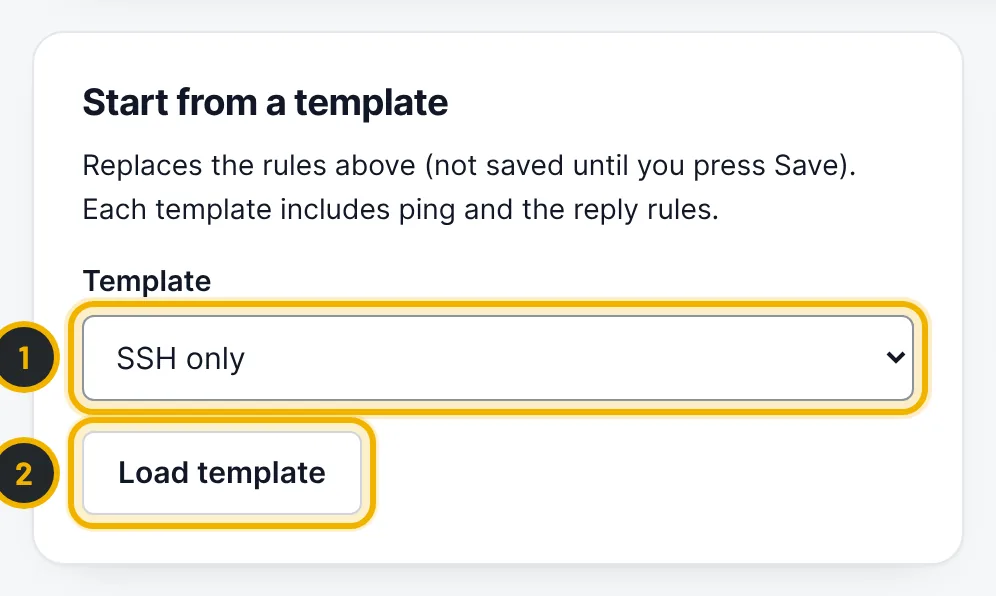
The numbers in the picture match the numbers in the text. Check the rules
Tick Firewall on (1). Each row (2) allows traffic to a port: for example
22,80,443or a range like8000-8100. Leave From address empty for anyone, or enter one IPv4 address or a network like203.0.113.0/24. Rules are checked from top to bottom; anything no rule allows is dropped. Outgoing traffic is always allowed.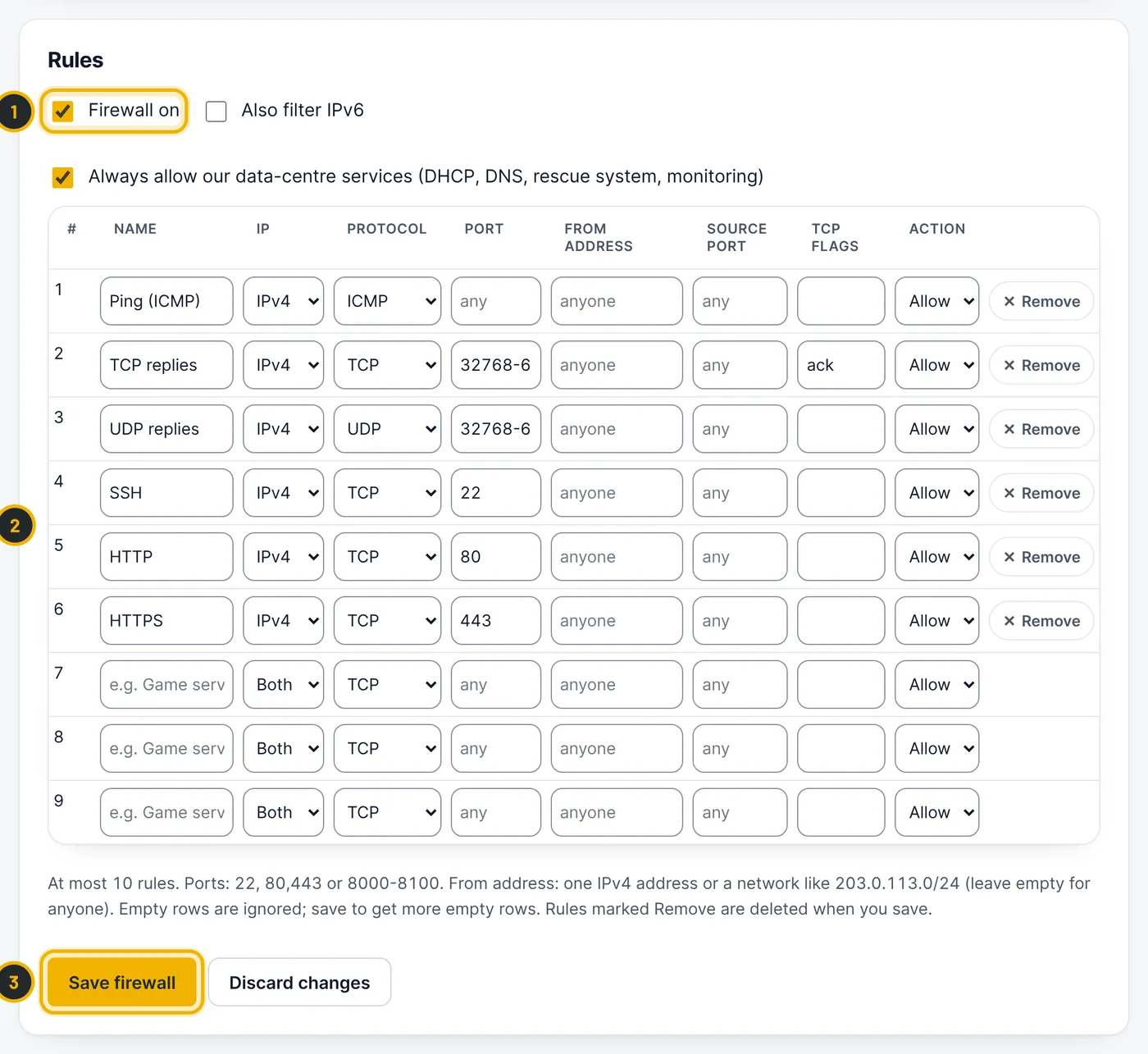
The numbers in the picture match the numbers in the text. Save
Press Save firewall (3). The change takes about 30 seconds to apply; the page shows being applied until it is done.
Questions
Does the firewall filter IPv6?
Only if you tick Also filter IPv6. IPv6 rules can filter by port and protocol, not by address.
Do I still need a firewall on the server?
It is a good idea to keep one (ufw, firewalld or Windows Defender Firewall) for finer rules. The network firewall adds a first layer that blocks traffic before it reaches the server.
Related guides
Still stuck?
Our team answers around the clock. Most questions get an answer within the hour.