How to use the rescue system
A Linux system that boots from the network. Your installed system is not changed, so it is the safe way to repair a server that no longer starts.
- Where
- Servers → your server → Server controls → Rescue system
- Log in as
rootwith the one-time password or your SSH key- Data
- your disks are not changed
Start the rescue system
Open the server, then Server controls → Rescue system. Optionally tick one of your saved SSH keys (1) so you can log in with it. Leave Restart now into the rescue system (2) ticked unless you want to restart the server yourself later, and press Start rescue system (3). You may be asked to confirm your password first.
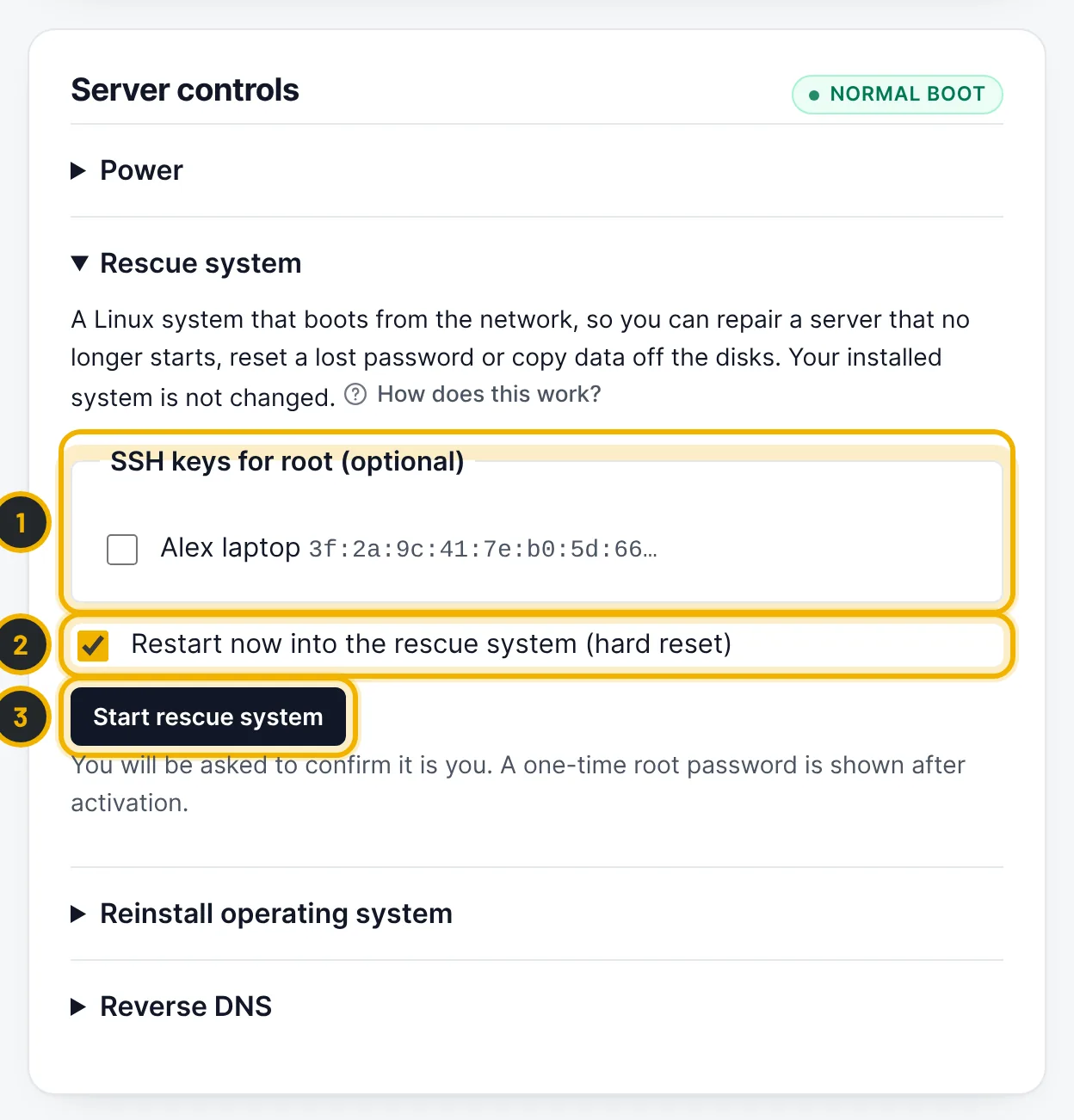
The numbers in the picture match the numbers in the text. Copy the one-time password
The panel shows a one-time root password (1). Copy it now: it is shown only once. After about a minute, connect with
ssh root@your-server-ip.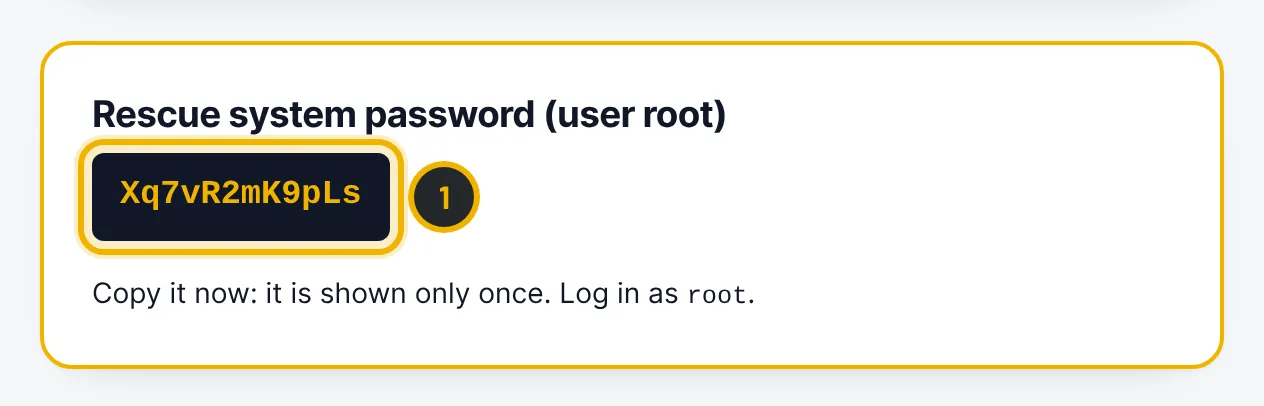
The numbers in the picture match the numbers in the text. Repair the server
From the rescue system you can, for example:
- mount your disks:
mount /dev/md2 /mnt(software RAID) ormount /dev/nvme0n1p3 /mnt - reset the root password:
chroot /mnt passwd - undo a broken firewall rule or
/etc/fstabentry - copy data away with
rsyncorscp
- mount your disks:
Switch the rescue system off
Back on the server page, the badge shows rescue armed. Press Switch off rescue with Restart now and boot from the disks again ticked. The server starts your installed system again.
Questions
I lost my root password. What do I do?
Start the rescue system, mount the system disk and run passwd inside a chroot, as described in step 3. Or open a ticket and we will help you.
Related guides
Still stuck?
Our team answers around the clock. Most questions get an answer within the hour.