How to reboot, reset or power off your server
Five restart options, from a clean reboot to a technician pressing the button in the data centre. No ticket needed.
- Where
- Servers → your server → Server controls → Power
- Time
- 1 to 2 minutes for most options
- Data
- nothing is erased
Open the power options
Go to Servers, open the server and find Server controls. Click Power to unfold it.

Choose the restart type
Pick one option (1):
- Soft reboot sends Ctrl+Alt+Del: the operating system shuts down cleanly and restarts. Try this first.
- Hard reset presses the reset button: an immediate restart, unsaved data is lost.
- Power button is a short press: the OS shuts down if it supports ACPI.
- Force power off holds the button: the server switches off hard. Use Power button again to start it.
- Technician reset: a technician in the data centre resets the server by hand. It takes longer, so use it only if the others fail.
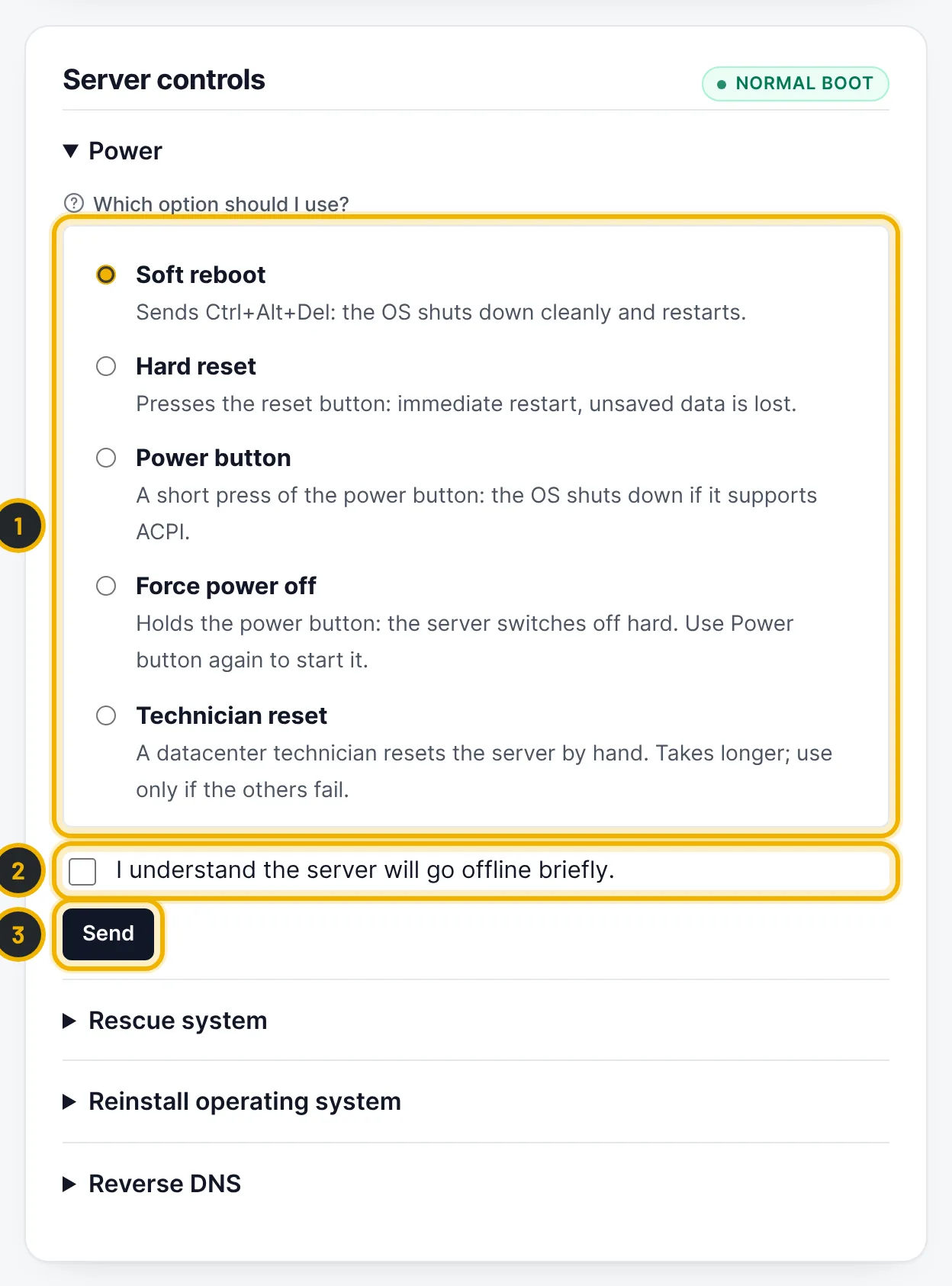
The numbers in the picture match the numbers in the text. Confirm and send
Tick I understand the server will go offline briefly (2) and press Send (3). The panel confirms that the command was sent. It can take a minute or two before the server answers again.
Questions
Will a reboot erase anything?
No. Restarting never touches your data. Only a reinstall erases the disks.
Related guides
Still stuck?
Our team answers around the clock. Most questions get an answer within the hour.