How to use the remote console (KVM)
See the server's screen and use its keyboard in your browser, even while it boots or has no network. Available on every server.
- Where
- Servers → your server → Remote console (KVM)
- Session
- 1 to 3 hours
- Ready
- our team connects it and emails you
Request a console
Open the server and unfold Request a console in the Remote console (KVM) box. Choose As soon as possible or At a time that suits me (1) (then write the time with your time zone), how long you need it (2), and anything we should prepare (3). Press Request console (4).
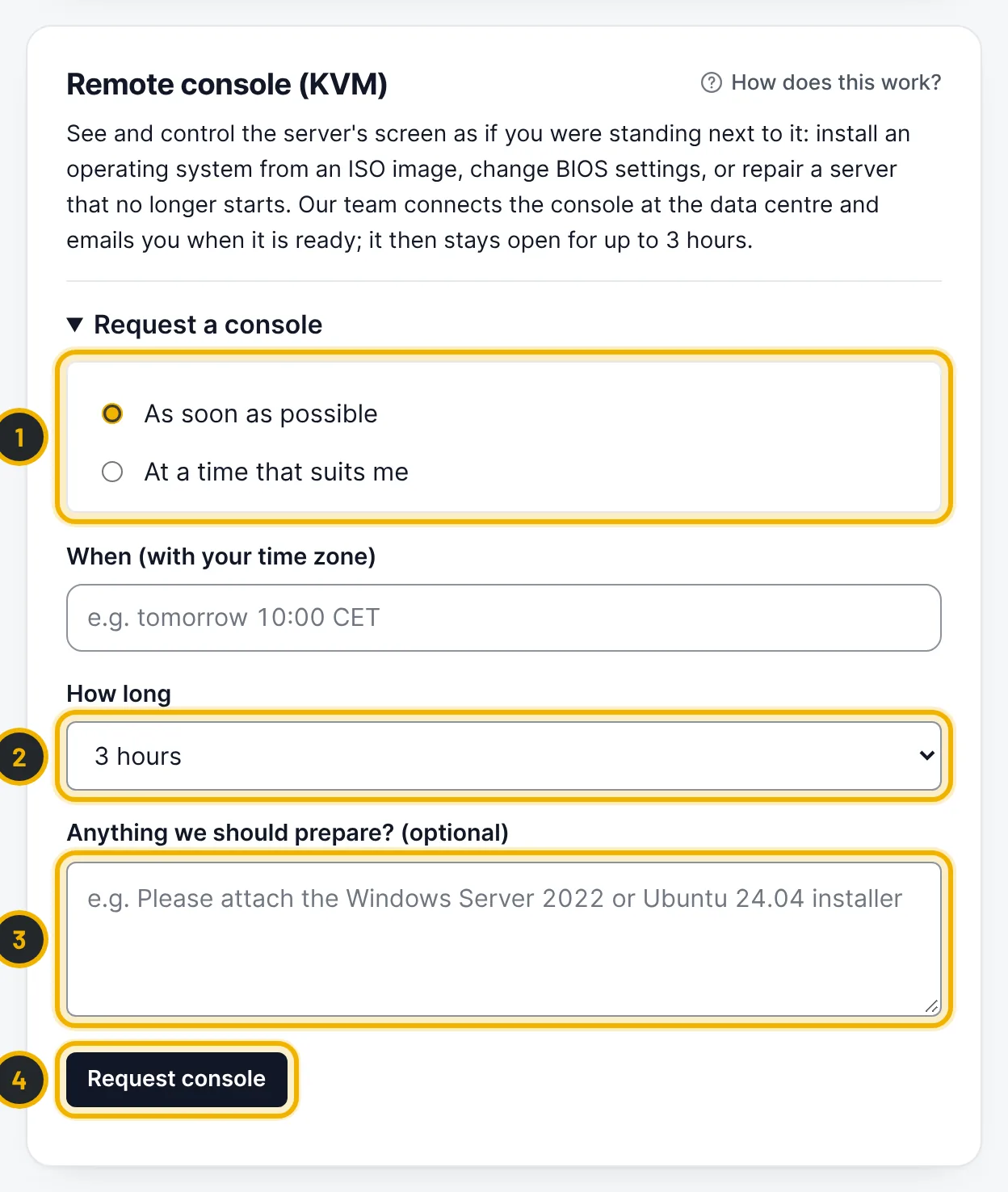
The numbers in the picture match the numbers in the text. Wait for the email
Our team connects the console to your server in the data centre and emails you as soon as it is ready. While you wait, the box shows your request; you can withdraw it at any time.
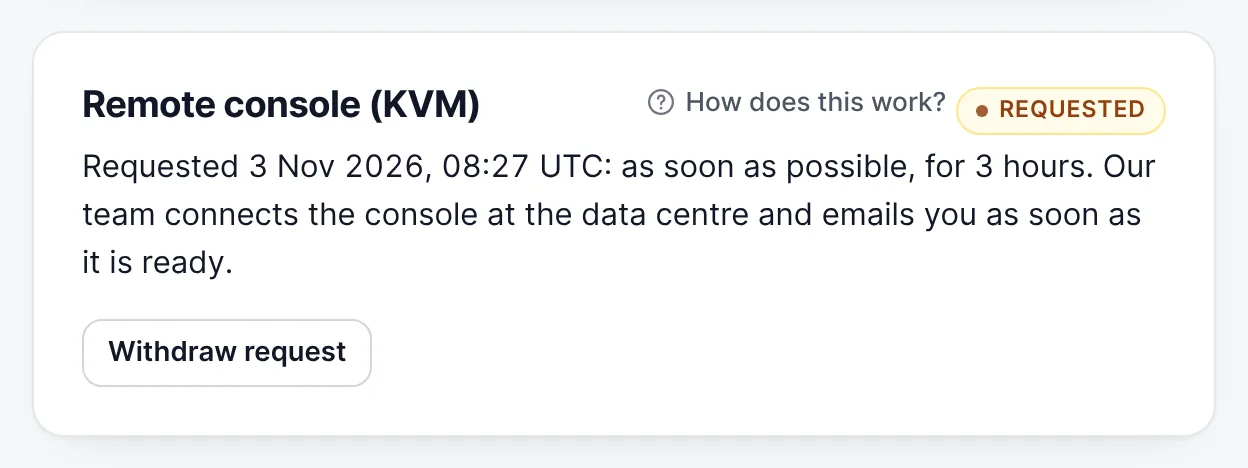
Open the console
When the badge shows ready, press Open console (1). The console opens in a new tab on console.dedigermany.com and shows the server's screen. If the screen stays black, press a key, or send Ctrl+Alt+Del from the console toolbar. Press End session now (2) when you are done; otherwise it closes on its own when the time is up.
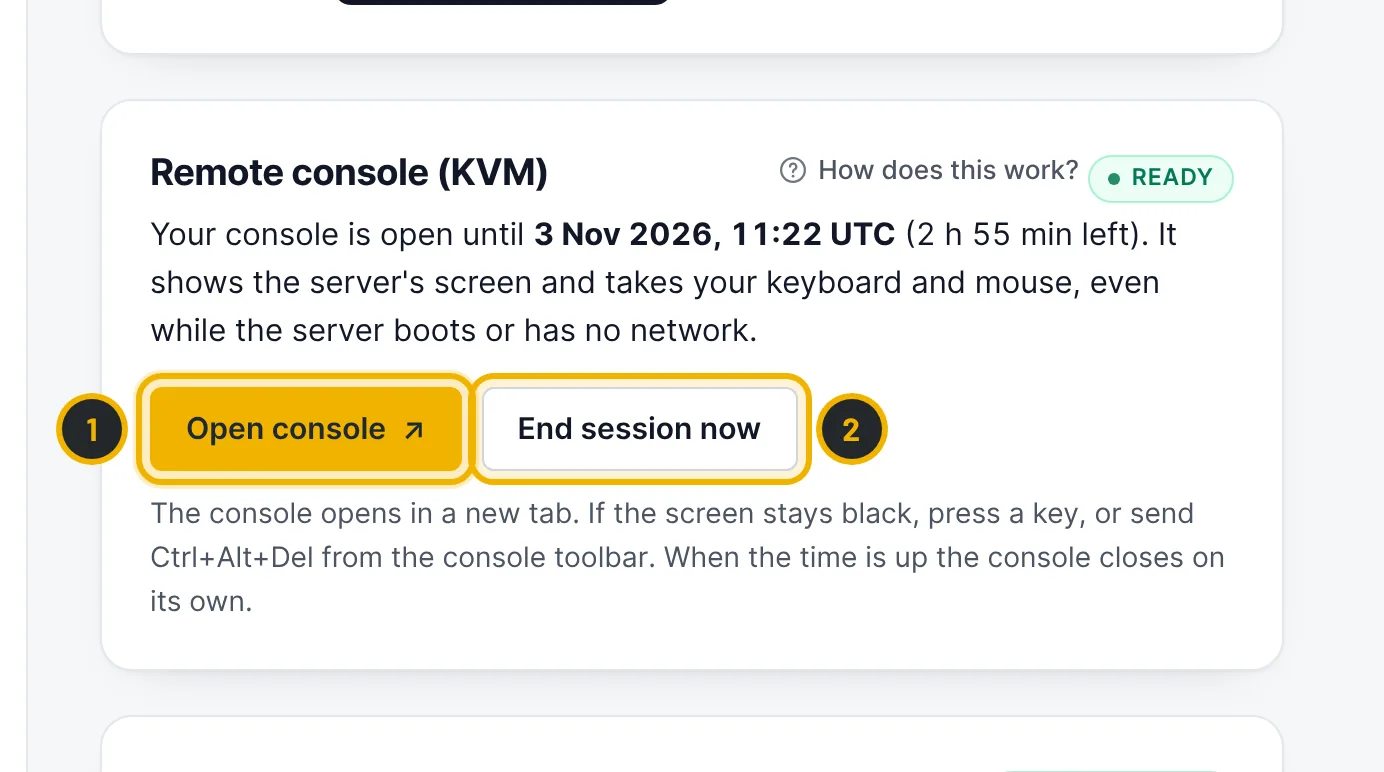
The numbers in the picture match the numbers in the text.
Questions
Is there an extra charge for the console?
No. The remote console is included with every server.
Why is it not instant?
The console is a separate device that is plugged into your server for the session, so a technician connects it. You get an email the moment it is ready.
Related guides
Still stuck?
Our team answers around the clock. Most questions get an answer within the hour.