Dedicated server security checklist for day one
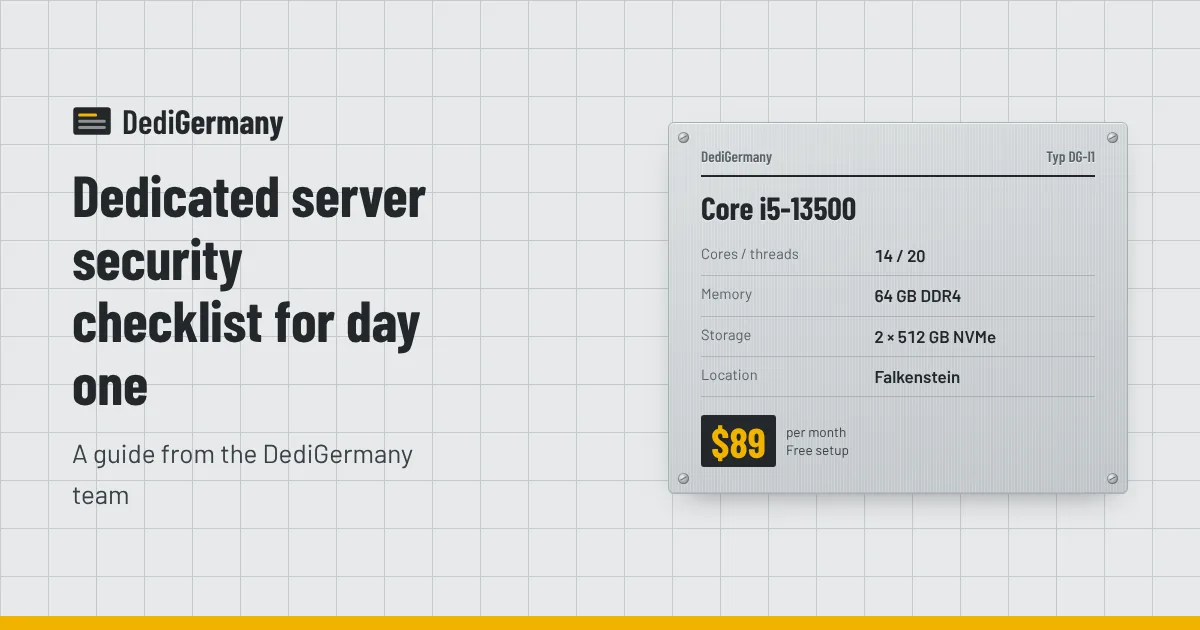
A new server with a public IP address starts receiving automated login attempts very soon after it goes online. This dedicated server security checklist covers what to do in the first 24 hours: secure SSH, enable a firewall, patch the system, block brute-force attempts, and set up backups and monitoring. The commands are for Debian and Ubuntu, but the steps apply to any Linux distribution, and there is a short section for Windows Server at the end.
Before you start the dedicated server security checklist
Every server we deliver has full root access and a rescue system. If a firewall rule or SSH change locks you out, you can boot into rescue, mount your disks and fix the configuration. Knowing that makes it easier to tighten things properly rather than leaving doors open for fear of breaking access. Even so, follow one rule throughout: keep your current SSH session open and test every change from a second session.
Your server also includes DDoS protection on the network. That handles volumetric floods, but it does not replace host security. Everything below is still your job, or ours if you add managed support.
Hour 1: lock down SSH
Create a normal user
adduser deploy
usermod -aG sudo deploy
Set up key-based login
On your own computer, create a key if you don't have one and copy it to the server:
ssh-keygen -t ed25519 -C "you@example.com"
ssh-copy-id deploy@your-server-ip
Log in as the new user in a second terminal and confirm sudo works.
Disable root and password logins
Edit /etc/ssh/sshd_config (or add a file in /etc/ssh/sshd_config.d/) and set:
PermitRootLogin no
PasswordAuthentication no
KbdInteractiveAuthentication no
Then reload SSH with sudo systemctl reload ssh and test a fresh login before closing your original session. Changing the SSH port is optional; it reduces log noise but is not a security control on its own.
Hour 2: firewall and open ports
Start by seeing what is listening:
sudo ss -tulpnAnything you don't recognise, or don't need on the public internet, should be stopped or bound to localhost. Databases such as PostgreSQL and MySQL should almost never listen on a public address; if remote access is needed, restrict it to specific IPs or use an SSH tunnel or VPN.
Then enable a default-deny firewall. With ufw:
sudo apt install ufw
sudo ufw default deny incoming
sudo ufw default allow outgoing
sudo ufw allow OpenSSH
sudo ufw allow 80,443/tcp
sudo ufw enable
sudo ufw status verbose
Add only the ports your services need, for example 25565 for Minecraft or your game server's port range. Remember that your server has a /64 IPv6 range as well as its IPv4 address: ufw applies rules to both when IPv6 is enabled in /etc/default/ufw, but if you write raw nftables rules, cover both families. If you run Proxmox VE, use its built-in firewall at datacenter, node and VM level instead; our Proxmox setup guide covers it.
Hour 3: updates, automatic patches and fail2ban
Patch everything
sudo apt update && sudo apt full-upgrade
sudo reboot
Reboot if a new kernel was installed, then confirm you can log back in.
Turn on automatic security updates
sudo apt install unattended-upgrades
sudo dpkg-reconfigure -plow unattended-upgrades
This applies security patches daily. Application-level software such as control panels, game server builds or language runtimes still needs your own update routine.
Block brute-force attempts
Key-only SSH already defeats password guessing, but fail2ban cuts the log noise and protects other services such as mail or web logins:
sudo apt install fail2ban
sudo cp /etc/fail2ban/jail.conf /etc/fail2ban/jail.local
sudo systemctl enable --now fail2ban
sudo fail2ban-client status sshd
In jail.local, set sensible bantime, findtime and maxretry values and add your own office IP to ignoreip so you never ban yourself.
Hours 4-8: backups before data arrives
Set up backups before you put anything important on the server, not after. Your drives are mirrored in RAID 1, which protects against a disk failing, but not against deletion, ransomware or a bad deploy; see why RAID is not a backup.
- Choose a target off the server. Our 1 TB backup storage add-on is $6 a month. For larger data, a storage server works as a central backup target for several machines.
- Use an encrypted, deduplicating tool. restic and borg both encrypt on the client and only send changed data.
- Back up databases properly. Use
pg_dump,mysqldumpor the engine's own backup tool rather than copying live data files. - Test a restore. A backup you have never restored is a guess. Restore one file and one database dump on day one.
Our storage server backup guide covers retention schedules and the 3-2-1 rule in more depth.
Hours 8-24: monitoring and the rest of the checklist
Watch disks and RAID
cat /proc/mdstat
sudo apt install smartmontools nvme-cli
sudo smartctl -a /dev/nvme0
If you use Linux software RAID, configure mdadm to email you when an array degrades (set MAILADDR in /etc/mdadm/mdadm.conf). If a drive fails, open a ticket: our 24/7 on-site team replaces hardware.
Set up external monitoring
Use any uptime monitor to check your key ports and HTTPS endpoints from outside, and alert on disk space, memory and load from inside. Prometheus with node_exporter, Netdata or a hosted service all work.
Finish the basics
- Set the hostname and timezone, and make sure time sync is running (
timedatectl). - Remove packages and services you don't use.
- Store credentials in a password manager, not in shell history or plain files.
- Write down what you changed. Future you, or a colleague, will need it.
If you run Windows Server
The same principles apply to Windows. Never leave Remote Desktop open to the whole internet: restrict the RDP firewall rule to your own IP addresses, keep Network Level Authentication on, use long unique passwords for every administrator account, and install Windows updates before deploying anything. Our Windows dedicated server page covers licensing, with Windows Server 2025 Standard available as an add-on from $39 a month.
Moving an existing site onto a fresh server? Do this checklist first, then follow our VPS to dedicated server migration guide. And if you would rather not handle it yourself, managed support is available for $49 a month on any of our dedicated server plans.