Migrate VPS to dedicated server, step by step
To migrate VPS to dedicated server safely, you build and test the new machine while the VPS keeps serving traffic, copy data in two passes, and only switch DNS once everything works. Done this way, the actual downtime is a short final sync, and the old VPS stays available as a rollback. This guide walks through each step, from sizing the new server to switching off the VPS.
Step 1: inventory before you migrate VPS to dedicated server
Start by writing down everything the VPS does. Migrations fail on the things nobody remembered:
- Web server, runtime versions (PHP, Node.js, Python) and their configuration.
- Databases, their versions and sizes.
- Cron jobs, systemd timers and background workers.
- Mail: does the VPS send or receive email? Are SPF and DKIM records tied to its IP?
- TLS certificates and how they renew.
- Firewall rules, IP allowlists at third parties, and anything that calls your server by IP.
Then size the dedicated server from what is limiting you now. If the VPS runs out of memory, look at 64 GB or more. If CPU steal time is high, you are sharing cores; any dedicated server fixes that, as explained in dedicated server vs VPS.
| Typical VPS situation | Suggested plan | Price |
|---|---|---|
| A few sites or apps outgrowing a mid-size VPS | Core i5-13500, 14c/20t, 64 GB DDR4, 2 × 512 GB NVMe | $89/mo, setup $0 |
| Production database or client sites that need ECC | Ryzen 7 PRO 8700GE, 8c/16t, 64 GB DDR5 ECC | $149/mo, setup $59 |
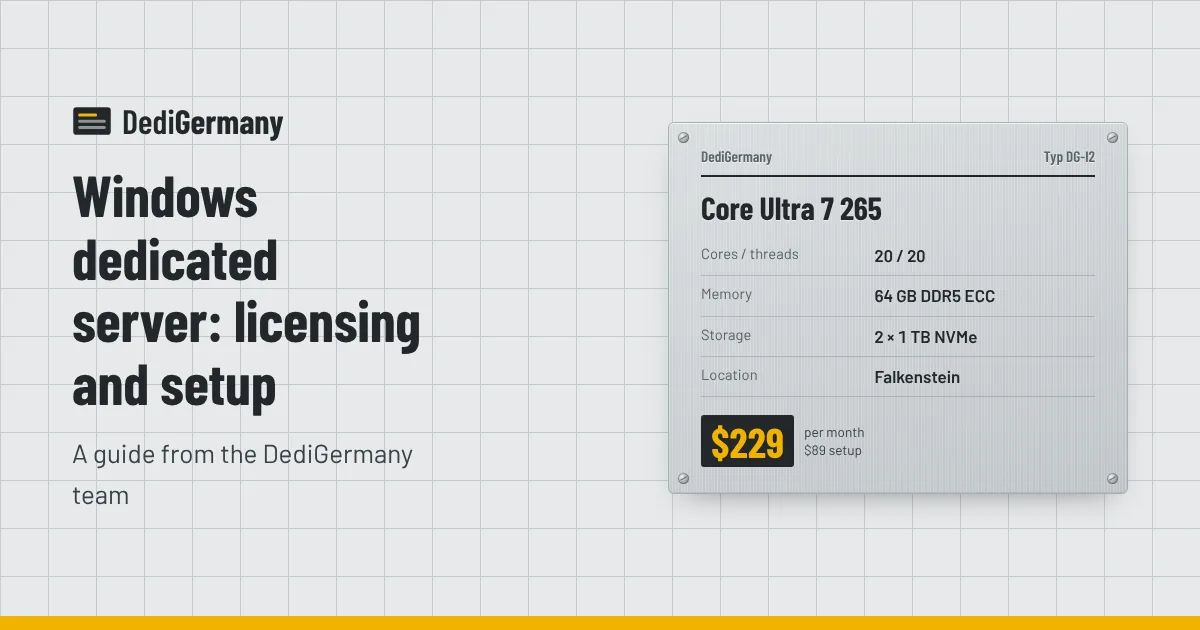
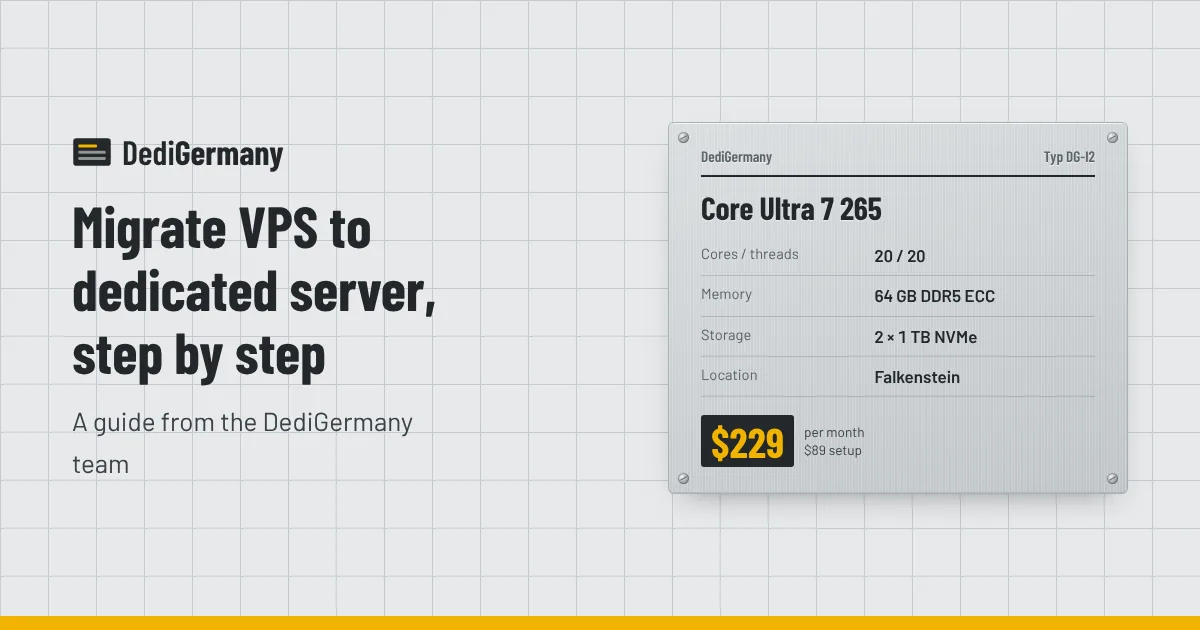
| Several VPSs consolidating into one host, or room to grow memory | Core Ultra 7 265, 20c/20t, 64 GB DDR5 ECC (max 192 GB), 2 × 1 TB NVMe | $229/mo, setup $89 |
| Heavy database or latency-sensitive workloads | Ryzen 9 7950X3D, 16c/32t, 128 GB DDR5 ECC, 2 × 1.92 TB NVMe DC | $389/mo, setup $159 |
All plans include an unmetered 1 Gbit/s port, so bandwidth overage charges you may have had on a VPS go away.
Step 2: prepare the new server
Most of our servers are online within 24 hours. Once yours is ready:
- Secure it first. SSH keys, firewall, updates and fail2ban, as in our dedicated server security checklist.
- Match software versions. Install the same major versions of your database and runtimes as the VPS. Upgrade them after the move, not during it, so you change one thing at a time.
- Recreate users, directories and permissions. Keep paths identical where you can, so configuration files copy over unchanged.
- Copy configuration. Web server vhosts, application environment files, cron entries and systemd units.
If you plan to split services into virtual machines or containers on the new hardware, set that up now. Our Proxmox virtualisation page explains how one dedicated server can host several isolated environments.
Step 3: lower DNS TTL in advance
Resolvers cache your DNS records for as long as the TTL says. If your A record has a TTL of 86400 (one day), some visitors will keep hitting the old IP for up to a day after you change it.
At least one full TTL period before the cutover, ideally 24-48 hours ahead, lower the TTL on every record you will change to 300 seconds. After the cutover is stable, raise it again.
Step 4: first data sync
Copy files while the VPS is still live. rsync over SSH is the standard tool. Run it from the new server:
rsync -aHAX --numeric-ids --info=progress2 -e ssh root@old-vps:/var/www/ /var/www/The flags preserve permissions, ownership, hard links, ACLs and extended attributes. This first pass can take a while on large data, but it does not interrupt the VPS. Run it again later and only changed files are copied.
For databases, do not copy live data files. Take a logical dump and restore it:
pg_dump -Fc mydb > mydb.dump
pg_restore -d mydb mydb.dump
For MySQL or MariaDB, use mysqldump --single-transaction. If the database is large or downtime must be very short, set up replication from the VPS to the new server instead, and promote the new server at cutover. Our database server hosting page covers suitable hardware.
Step 5: test before anyone else sees it
Point your own computer at the new server without touching public DNS by adding a line to your hosts file:
203.0.113.10 example.com www.example.comReplace the address with your new server's IP. Then work through the application: log in, submit forms, upload a file, trigger email, run a cron job by hand and check logs for errors. TLS certificates can be issued in advance using DNS validation, or copied from the VPS.
Step 6: cutover
Pick a quiet time and follow a written runbook:
- Announce a short maintenance window if users will notice.
- Put the application on the VPS into maintenance or read-only mode to stop writes.
- Run the final rsync pass; it will be quick because only changes are copied.
- Take a final database dump and restore it, or promote the replica.
- Start services on the new server and run your smoke tests via the hosts file again.
- Update DNS records to the new IP. With a 300-second TTL, most traffic moves within minutes.
- Watch logs on both servers. Traffic on the VPS should fall away.
| When | Task |
|---|---|
| 3-7 days before | Inventory, order server, secure and configure it |
| 24-48 hours before | Lower DNS TTL, run first full sync, test via hosts file |
| Cutover window | Freeze writes, final sync, switch DNS, smoke test |
| 1-2 weeks after | Keep VPS as rollback, raise TTL, then decommission |
Step 7: rollback plan and decommissioning
Decide in advance what failure looks like and how you will back out. Because the VPS still holds a full copy of the data as it was before cutover, rollback is simply pointing DNS back to the old IP. The catch is any data written on the new server after cutover, so decide how you would copy that back if needed, and make the go or no-go call within the first hour or two.
Keep the VPS running for a week or two after a successful move. Check that backups are running on the new server, that cron jobs fire, that mail is delivered and that monitoring is in place. Update SPF records and any third-party IP allowlists. Only then cancel the VPS.
If you are moving several sites for clients, our reseller hosting server page covers control panel setups that make bulk moves easier. If you would like a hand with the move, our managed support add-on is $49 a month, or contact us to talk through which server fits your current VPS workload.