Proxmox dedicated server setup, step by step
A Proxmox dedicated server gives you your own private cloud: KVM virtual machines and LXC containers on hardware nobody else shares, managed from one web interface. This guide covers choosing the hardware, installing Proxmox VE, mirroring the disks with ZFS, networking VMs with extra IPs or NAT, and setting up backups you can actually restore.
Choosing hardware for a Proxmox dedicated server
Virtualisation hosts run out of memory long before they run out of CPU, so start with RAM, then storage, then cores. ECC memory is worth having: a single flipped bit on a host can corrupt any guest, and ZFS trusts what is in RAM.
| Plan | CPU | RAM (max) | Storage (max) | Location | Price |
|---|---|---|---|---|---|
| Ryzen 7 PRO 8700GE | 8c/16t | 64 GB DDR5 ECC | 2 × 512 GB NVMe | Falkenstein | $149/mo |
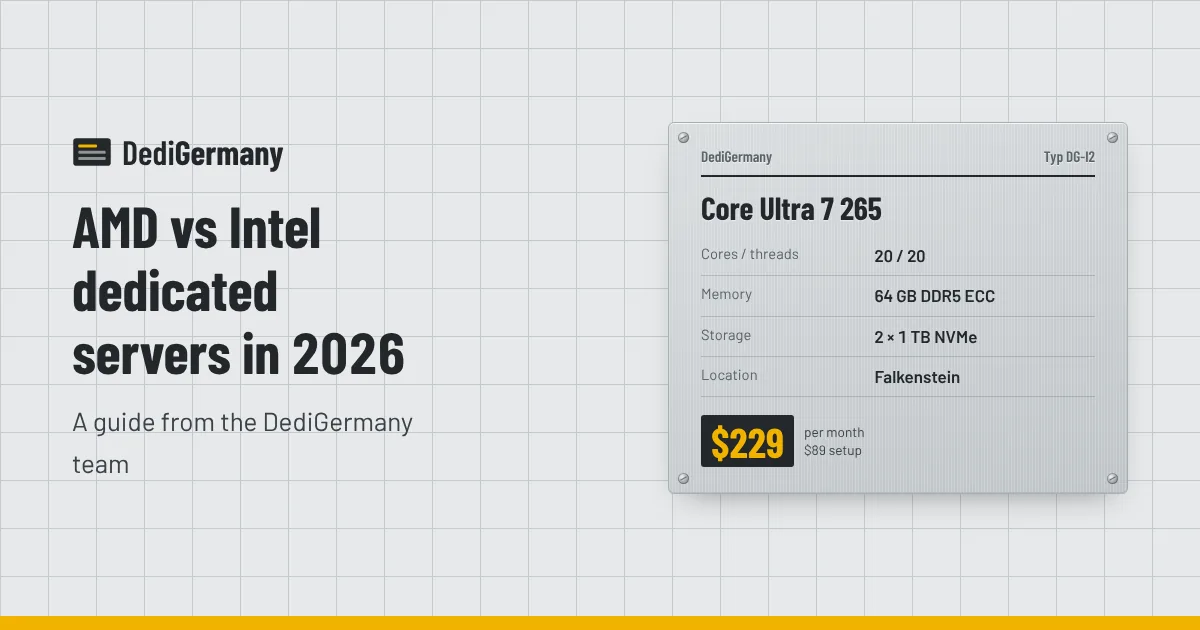
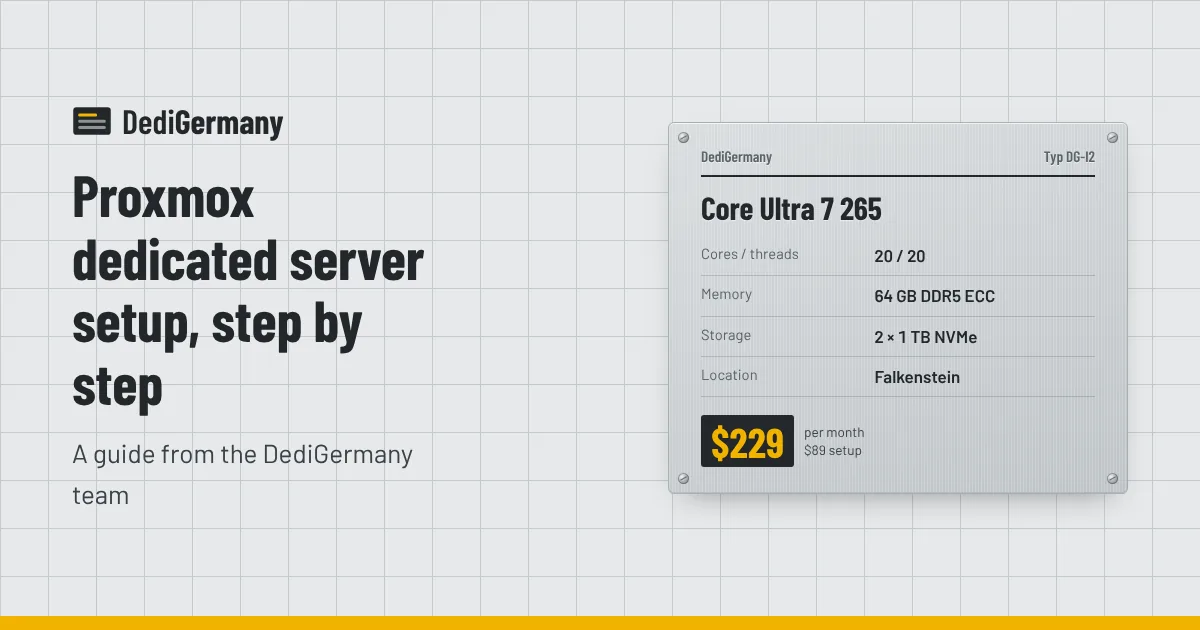
| Core Ultra 7 265 | 20c/20t | 64 GB DDR5 ECC (192 GB) | 2 × 1 TB NVMe (4 × 3.84 TB NVMe DC) | Falkenstein | $229/mo |
| EPYC 9454P | 48c/96t | 128 GB DDR5 ECC Reg (512 GB) | 2 × 1.92 TB NVMe DC (2 × 15.36 TB) | Falkenstein | $929/mo |
| Dell EPYC 9454P | 48c/96t | 128 GB DDR5 ECC Reg (512 GB) | 2 × 1.92 TB NVMe DC (4 × 7.68 TB) | Nuremberg | $1,089/mo |
The Ryzen 7 PRO 8700GE is a tidy home for a handful of VMs. The Core Ultra 7 265 is the sweet spot for a small business or homelab-style setup that will grow, because it scales to 192 GB of memory and four NVMe drives. The EPYC 9454P is for dense hosts running dozens of guests. Upgrades beyond the listed maximums are quoted on request.
Installing Proxmox VE
There are two practical routes, depending on whether you have a remote console.
Route 1: Proxmox on top of Debian
This works on every server. Install the Debian release that your target Proxmox VE version is based on, then follow the "Install Proxmox VE on Debian" guide in the official Proxmox documentation. In outline:
- Set a fixed hostname and make sure it resolves to the server's public IP in
/etc/hosts. - Add the Proxmox VE package repository and its signing key.
- Run a full upgrade, install the Proxmox kernel and reboot into it.
- Install the
proxmox-vepackage, remove the stock Debian kernel, then reboot again. - Log in to the web interface on port 8006 with your root credentials.
If something goes wrong with networking during the switch, the rescue system lets you boot the server independently of the installed OS, mount the disks and fix the config.
Route 2: the official ISO on Dell servers
Our Dell PowerEdge servers include iDRAC Enterprise, which gives you a remote console and virtual media. Mount the Proxmox VE ISO, boot from it and run the graphical installer exactly as you would on a local machine. This is the easiest way to get ZFS as the root filesystem from day one.
Disk layout: ZFS mirror or mdadm
Every DediGermany server ships with two NVMe drives. For Proxmox you have two sensible layouts:
- ZFS mirror (RAID 1): the Proxmox installer's "ZFS (RAID1)" option puts the OS and VM storage on a mirrored pool. You get checksums that detect silent corruption, cheap snapshots and replication. Budget memory for the ARC cache, and cap it in
/etc/modprobe.d/zfs.confif your VMs need the RAM. - mdadm RAID 1 with LVM-thin: the typical result of the Debian route. It is simple and fast, and LVM-thin still gives you VM snapshots.
On plans that take four NVMe drives, such as the Core Ultra 7 265 or the Dell EPYC 9454P, you can build a striped mirror (RAID 10 or two ZFS mirror vdevs) for more capacity and IOPS. Our post on RAID 1 vs RAID 10 vs ZFS goes through the trade-offs.
Networking: extra IPs, subnets and NAT
Each server comes with one IPv4 address and a /64 IPv6 block. That leaves three common ways to connect guests.
NAT on a private bridge
For VMs that only make outbound connections, or sit behind a reverse proxy on the host, create a private bridge and masquerade it through the main IP. This example follows the Proxmox documentation:
auto vmbr1
iface vmbr1 inet static
    address 10.10.10.1/24
    bridge-ports none
    bridge-stp off
    bridge-fd 0
    post-up   echo 1 > /proc/sys/net/ipv4/ip_forward
    post-up   iptables -t nat -A POSTROUTING -s '10.10.10.0/24' -o vmbr0 -j MASQUERADE
    post-down iptables -t nat -D POSTROUTING -s '10.10.10.0/24' -o vmbr0 -j MASQUERADE
Give guests addresses in 10.10.10.0/24 with 10.10.10.1 as the gateway, and forward specific ports to them if needed.
Public IPv4 per VM
When a guest needs its own public address, order an extra IPv4 for $3/mo, or a /29 subnet for $25/mo if you need several. A /29 contains eight addresses; how many you can assign to VMs depends on how the subnet is delivered to your server, so check the details in your order before planning. A routed setup, where the host forwards traffic for those addresses to a guest bridge, is usually the cleanest on a dedicated server.
IPv6 for everything
A /64 has more addresses than you will ever use. Route parts of it to a guest bridge and give every VM a public IPv6 address at no extra cost.
Backups that live off the host
RAID protects against a dead drive. It does nothing about a deleted VM, ransomware or a failed upgrade. Proxmox has backups built in:
- vzdump creates full backups of VMs and containers on a schedule you set under Datacenter, Backup.
- Proxmox Backup Server adds deduplication, incremental backups and verification. Run it on a separate machine, such as a storage server, so the backups survive if the host does not.
- Off-site copies: our 1 TB backup storage add-on costs $6/mo and is a simple target for vzdump archives.
Test a restore once a month. A backup you have never restored is a hope, not a plan. For sizing a larger backup target, see our storage server backup guide.
Next steps
Once the host is running, lock down the web interface: enable two-factor authentication, restrict port 8006 with the Proxmox firewall and keep the system updated. Our Proxmox virtualisation server page lists the plans that suit virtualisation best, and you can compare everything on the dedicated servers page.